

Roadtechs.com Help
- Search Page Help Topics:
1. Overview of the Search Page
Heads UP!!!! The location (city, state, country) and job type (contract, temp-to-perm, "permanent) are brand new fields and it will take time for the recruiters to fully utilize them. If you are seeing limited hits, try removing location and / or job type criteria. It's possible that there are jobs at the location you're interested in, but they may not be coded to that location or job type.
The search page can help you narrow down your job search on Roadtechs.com. We've tried to make it easy to use and we've included "canned" searches for some of the more popular job searches.
Using overly simple search will result in too many hits to easily review. It's always best to narrow your search as much as possible using the search modifiers.
Try not to use the plural of words in a search string. The search term planners or schedulers will return far fewer hits than planner or scheduler.
Searches using only one or two characters will result in too many hits to be of any use. You can use modifiers in the freeform search to help narrow your search results. The words or, and and not are available as modifiers. Below is an example of how the search modifiers are used:
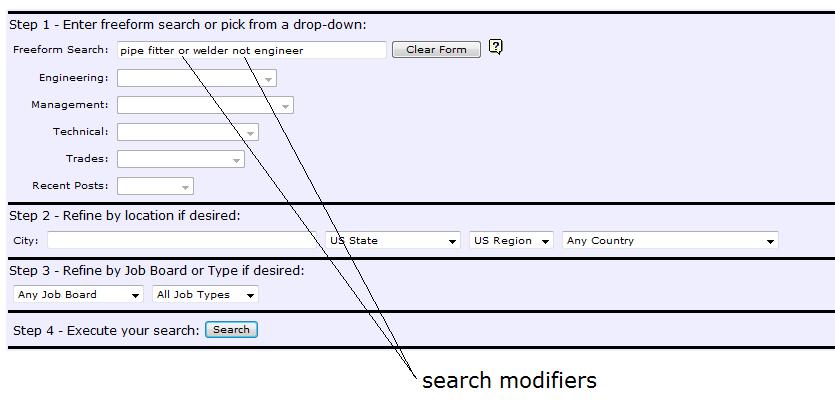
Searches using no modifiers will only return posts containing the exact search string.
Using Search Modifiers:
- No modifier
- Searches using no modifiers will only return posts containing the exact search string.
- or (this or that)
- Returns any post containing either of the words this or that.
- and (this and that)
- Returns any post containing both the words this and that.
- not (this not that)
- Returns any post containing the word this, excluding posts with the word that.
2. Using Freeform Search
Enter your search terms in the Freeform Search box and then click Search. You can use or, and or not to refine your search.
- Examples:
- Text searches like pipefitter or welder. This search would return any post containing either the word pipefitter or the word welder in the title, body text or name fields.
- Numeric searches like 18069 are limited to post number searches only. The results of this search would be the one job post with the number 18069 in the post number field if the post was still active (not filled or deleted).
- Name searches like Steve Smith should return any active job post with the name Steve Smith in the title, body text or name fields.
- Long date searches like December 09, 2006 will return any active job post posted on that exact date. It would also return any post with that long date in the body text. Limited to jobs posted in the past 60 days.
- Email address searches like bob@somedomain.com will return any active job post containing bob@somedomain.com in any field (except post number). Searching for @somedomain.com would return similar results for any email address from the @somedomain.com domain.
If you search for planner or scheduler, you'll get about 220 hits. This is because the search will find any post with either of the words planner or scheduler. The post would only have to contain one of the words to be returned.
Using planner not scheduler might yield 57 hits. This searches for all job posts containing the word planner but the post cannot contain the word scheduler.
planner scheduler ~ 7 hits
planner and scheduler ~ 39 hits
planner or scheduler ~ 220 hits
planner not scheduler ~ 57 hits
- Search: boilermaker foreman
- Better search: boilermaker and foreman
- Search: safety engineer
- Better search: safety and engineer not electrical not mechanical not civil
- Search: planners schedulers
- Better search: planner or scheduler or primavera or ms project
3. Using Canned Searches
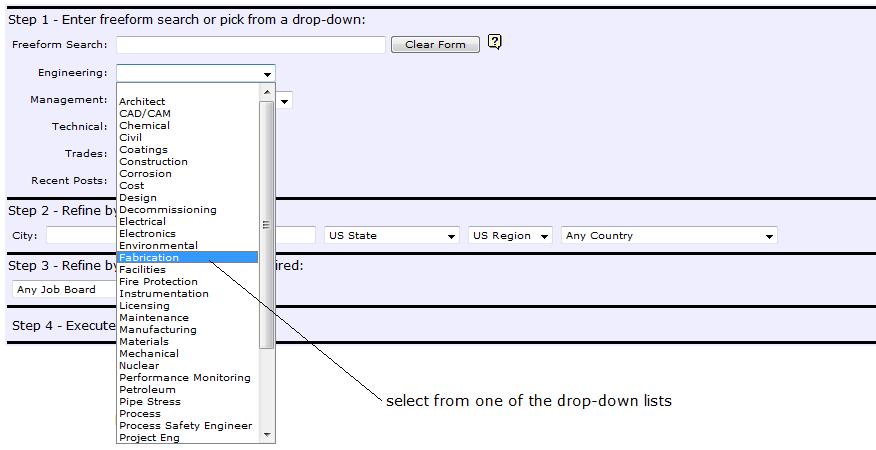
Select a discipline, trade or timeframe from any of the drop-down lists. The Recent posts drop-down box will return all jobs posted to any of the job boards within that time period. Using the Recent posts search at night or on weekends may result in "No jobs found" (zero hits).
Use the location, job board and job type drop-down boxes to help you narrow your query if needed, then click on the Search button.
4. Saving Your Search
If you've gone to the trouble to create your own freefrom search, you can save it by adding the results page to your browser's favorites. The saved URL will retain the search terms and the search will return the most current posts when you call up the page later from your favorites list. You can also save the canned searches.
5. Page Navigation
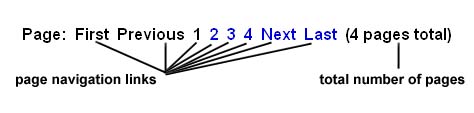
If your search returns more than 20 hits, your search will result in multiple pages. To navigate between pages, scroll down and look for the navigation links at the bottom of the page. If a navigation link is not clickable, then you are either on that particular page, or you have gone as far as you can in that direction.
- First: go to the first search results page.
- Previous: go back one search results page.
- Numbers: go to that specific search results page.
- Next: go forward one search results page.
- Last: go to the last search results page.
6. No jobs found
If the report returns "No jobs found.", then your search query terms were too restrictive. Try being more general with your search words and try again.
If the report comes back with the How to Use the Job Search Forms screen, then you may have clicked on the wrong search button, or the search box was empty.
7. Hints for Recruiters
Location, location, location. Users are going to use the location and job type fields to narrow their search. Give them a hand by always including city, state, job type (contract, temp to perm, perm), etc. in your job postings.
Your postings will receive many more users views if you include location and job type (contract, temp to perm, perm) information.
When posting jobs, try to be as consistent as possible with the content of the name and email fields. Your searches will be more accurate if you enter your name or company name and email address the same way every time.
If you jot down your post numbers when you create them, you can use this search page to recall them later using the post number in the Freeform Search box.
To find all of the posts you've created, try searching for your email address in the Freeform Search box.
To find all of the posts that your company has created, try searching for your company domain name (the mycompany.com part of myself@mycompany.com) in the Freeform Search box. You can also try the company name as a Freeform Search.
You can combine name, email address and dates to narrow your search. To find everything you posted on March 15. 2006, you could use a Freeform Search like:
Bob Smith and bobs@myshop.com and March 15. 2006.
The job board drop-down box is availabe to help you limit your query to a specific job board. Or, leave it selected to "All Boards" to see search results for all of the job boards.
"/search/search.php" "/search/search_logo.jpg"
8. Get Your Own Roadtechs.com Search Form
|
"/search/search_logo.jpg"
If you would like a Roadtechs.com Freeform Search box for your own site, you are welcome to cut and paste the following code into your web pages:
<form action="/search/search.php" method="get"> |